
Showing posts with label finance. Show all posts
Showing posts with label finance. Show all posts
Tuesday, 6 March 2012
Invoicing your customers
Invoices you send to your customers are also known as Accounts Receivable. Click on the Receivables link on the menu bar to see a list of invoices or create a new one.
See:
Creating an Invoice
Types of Invoices
Confused? Want more help? Just email us at support@officebooks.com We like to help.
Thursday, 1 March 2012
Value for Inventory vs. Cost vs. Price - they're different!
It is important to understand the difference between three key financial values tied to your inventory.
Value for Inventory:
This is the amount of financial value you recognize for each unit in your inventory. Don't confuse this with cost or (worse) price. If you aren't sure, make your value for inventory equal to your unit cost. The value for inventory can change over time due to depreciation.
Value for inventory is updated using a weighted average calculation when you build or receive new inventory.
Cost:
This is your cost when building or buying each unit of inventory. When you purchase an item using a purchase order, the cost field gets updated to reflect the new value (if the "Update cost on purchase" check box is checked).
Price:
This is what you charge customers when selling them a unit from your inventory.
Value for Inventory:
This is the amount of financial value you recognize for each unit in your inventory. Don't confuse this with cost or (worse) price. If you aren't sure, make your value for inventory equal to your unit cost. The value for inventory can change over time due to depreciation.
Value for inventory is updated using a weighted average calculation when you build or receive new inventory.
Cost:
This is your cost when building or buying each unit of inventory. When you purchase an item using a purchase order, the cost field gets updated to reflect the new value (if the "Update cost on purchase" check box is checked).
Price:
This is what you charge customers when selling them a unit from your inventory.

Thursday, 9 February 2012
Unit Inventory Value
The Unit Inventory Value is the amount (in your local currency) something is worth from an inventory perspective. Generally speaking, it's the cost of the item when you bought it. In fact, the value is updated for you automatically by OfficeBooks when you buy an item using a purchase order. If you already have inventory of the item, OfficeBooks will use a weighted average calculation to adjust the Unit Inventory Value.
If you have 8 widgets, and the Unit Inventory Value is $3.00, your "Item total value" is $24.00 (8 x $3).
You can use the "Adjust Value" button to change the Unit Inventory Value manually. This should be done with care as changes in inventory value (typically) have tax implications for your business.
In the future, OfficeBooks will offer a set of depreciation tools to adjust values globally.
Careful: don't confuse the Unit Inventory Value with the sales price.
If you have 8 widgets, and the Unit Inventory Value is $3.00, your "Item total value" is $24.00 (8 x $3).
You can use the "Adjust Value" button to change the Unit Inventory Value manually. This should be done with care as changes in inventory value (typically) have tax implications for your business.
In the future, OfficeBooks will offer a set of depreciation tools to adjust values globally.
Careful: don't confuse the Unit Inventory Value with the sales price.
Wednesday, 1 February 2012
Types of Invoices in OfficeBooks
There are three types of invoices you can create with OfficeBooks.
Contact Invoices
A Contact invoice is not connected to a sales record. This invoice type would be more common for businesses that sell intangible goods (consulting, rental properties, etc).
You will select a contact from your contacts list and make an invoice out for them. The invoiced amount will be reflected as a billing for the current month on your dashboard.
Shipment Invoices
A Shipment invoice is linked to a shipment you have made from a sale. This is the most common type of invoice used by businesses that sell tangible goods.
By selecting the shipment you want to invoice (or clicking the "Create Invoice" link from the shipments list), OfficeBooks will automatically complete the required invoice details. You can edit the invoice if necessary before clicking the PDF Invoice button to generate your printable copy.
Sales Invoices
A Sales invoice is linked directly to a sale record. This type of invoice would be more common for businesses (like plumbers or electricians) that sell a mix of intangible goods (labor) and non-stocked tangible goods.
By selecting the sale you want to invoice, OfficeBooks will automatically complete the invoice details based on the sale record. You can edit the invoice if necessary before clicking the PDF Invoice button to generate your printable copy.
Contact Invoices
A Contact invoice is not connected to a sales record. This invoice type would be more common for businesses that sell intangible goods (consulting, rental properties, etc).
You will select a contact from your contacts list and make an invoice out for them. The invoiced amount will be reflected as a billing for the current month on your dashboard.
Shipment Invoices
A Shipment invoice is linked to a shipment you have made from a sale. This is the most common type of invoice used by businesses that sell tangible goods.
By selecting the shipment you want to invoice (or clicking the "Create Invoice" link from the shipments list), OfficeBooks will automatically complete the required invoice details. You can edit the invoice if necessary before clicking the PDF Invoice button to generate your printable copy.
Sales Invoices
A Sales invoice is linked directly to a sale record. This type of invoice would be more common for businesses (like plumbers or electricians) that sell a mix of intangible goods (labor) and non-stocked tangible goods.
By selecting the sale you want to invoice, OfficeBooks will automatically complete the invoice details based on the sale record. You can edit the invoice if necessary before clicking the PDF Invoice button to generate your printable copy.
Friday, 4 November 2011
Creating an Invoice
You have several options to create an invoice.
The typical approach to creating invoices is to first create a sale, then ship items from that sale, then create an invoice linked to your shipment.
After the shipment is complete, the shipment details screen offers the option to create an invoice (top-right corner).
Clicking on the Create Invoice link automatically generates an invoice record. You can adjust the invoice as necessary before saving the invoice record. To generate a printable invoice, click the PDF Invoice button.
Depending on your business type, "shipping" could be an unnecessary and counter-intuitive. Don't worry, you have options.
Sales Invoices
You can create an invoice linked directly to a sale (no shipping). To create this type of invoice, first click on the Receivables button from the main toolbar. This will bring you to the Customer Invoices list.
From the Customer Invoices screen, click the "New Invoice" link.
From the "Invoice Type" drop-down, select "Sale". Wait for the screen to complete its refresh, then select the sale you would like to invoice from the "Invoice to" drop-down list. This list will be filtered by default to only show sales that are active and not invoiced. You can display all sales by clicking the checkbox over the drop-down menu.
After selecting a sale, the invoice details will be automatically fetched from the sale. Adjust as desired, then click Save to complete the operation. Click PDF Invoice to generate a printable invoice.
Contact Invoices
You can create an invoice linked directly to a contact (no sale or shipping). This invoice type would be more common for businesses that sell intangible goods (consulting, rental properties, etc).
From the "Invoice Type" drop-down, select "Contact". Wait for the screen to complete its refresh, then select the contact you would like to invoice from the "Invoice to" drop-down list. This list will be filtered by default to only show contacts that are active and are customers.
Add line items as necessary, adjust pricing (remember to click the check mark to save each line as you go), then click Save to complete the operation. Click PDF Invoice to generate a printable invoice.
The typical approach to creating invoices is to first create a sale, then ship items from that sale, then create an invoice linked to your shipment.
 |
| The Create Invoice link is available from the shipment detail screen |
Clicking on the Create Invoice link automatically generates an invoice record. You can adjust the invoice as necessary before saving the invoice record. To generate a printable invoice, click the PDF Invoice button.
Depending on your business type, "shipping" could be an unnecessary and counter-intuitive. Don't worry, you have options.
Sales Invoices
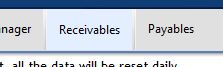 |
| The Receivables button is available from the main toolbar |
From the Customer Invoices screen, click the "New Invoice" link.
From the "Invoice Type" drop-down, select "Sale". Wait for the screen to complete its refresh, then select the sale you would like to invoice from the "Invoice to" drop-down list. This list will be filtered by default to only show sales that are active and not invoiced. You can display all sales by clicking the checkbox over the drop-down menu.
After selecting a sale, the invoice details will be automatically fetched from the sale. Adjust as desired, then click Save to complete the operation. Click PDF Invoice to generate a printable invoice.
Contact Invoices
You can create an invoice linked directly to a contact (no sale or shipping). This invoice type would be more common for businesses that sell intangible goods (consulting, rental properties, etc).
From the "Invoice Type" drop-down, select "Contact". Wait for the screen to complete its refresh, then select the contact you would like to invoice from the "Invoice to" drop-down list. This list will be filtered by default to only show contacts that are active and are customers.
Add line items as necessary, adjust pricing (remember to click the check mark to save each line as you go), then click Save to complete the operation. Click PDF Invoice to generate a printable invoice.
Subscribe to:
Posts (Atom)