
Showing posts with label invoices. Show all posts
Showing posts with label invoices. Show all posts
Tuesday, 6 March 2012
Invoicing your customers
Invoices you send to your customers are also known as Accounts Receivable. Click on the Receivables link on the menu bar to see a list of invoices or create a new one.
See:
Creating an Invoice
Types of Invoices
Confused? Want more help? Just email us at support@officebooks.com We like to help.
Thursday, 1 March 2012
Getting started with custom record numbers
If you would prefer to use your own numbers for purchase orders, sales orders (quotes), and invoices follow these instructions to make us of the Reference # fields as an alternative to the OfficeBooks assigned record numbers.
Under the Business Profile section in your settings menu, you have check boxes in each of your document setup tabs.



When these checkboxes are checked, OfficeBooks will generate PDF reports (like Purchase Orders, Quotations, and Invoices) using whatever number you choose to enter in the "Reference #" field on that record.
 Given the broad range of user requirements and situations, we've opted to allow the Reference # field to contain anything. Duplicates are okay, it can be empty, etc.
We plan to add some (optional) automation to support this. So if you want the Reference # field to auto-increment, or have a standard prefix or suffix - that will (eventually) be possible.
Comments? Send us an email to let us know!
Under the Business Profile section in your settings menu, you have check boxes in each of your document setup tabs.


When these checkboxes are checked, OfficeBooks will generate PDF reports (like Purchase Orders, Quotations, and Invoices) using whatever number you choose to enter in the "Reference #" field on that record.
Given the broad range of user requirements and situations, we've opted to allow the Reference # field to contain anything. Duplicates are okay, it can be empty, etc. We plan to add some (optional) automation to support this. So if you want the Reference # field to auto-increment, or have a standard prefix or suffix - that will (eventually) be possible.
Comments? Send us an email to let us know!
Wednesday, 1 February 2012
Types of Invoices in OfficeBooks
There are three types of invoices you can create with OfficeBooks.
Contact Invoices
A Contact invoice is not connected to a sales record. This invoice type would be more common for businesses that sell intangible goods (consulting, rental properties, etc).
You will select a contact from your contacts list and make an invoice out for them. The invoiced amount will be reflected as a billing for the current month on your dashboard.
Shipment Invoices
A Shipment invoice is linked to a shipment you have made from a sale. This is the most common type of invoice used by businesses that sell tangible goods.
By selecting the shipment you want to invoice (or clicking the "Create Invoice" link from the shipments list), OfficeBooks will automatically complete the required invoice details. You can edit the invoice if necessary before clicking the PDF Invoice button to generate your printable copy.
Sales Invoices
A Sales invoice is linked directly to a sale record. This type of invoice would be more common for businesses (like plumbers or electricians) that sell a mix of intangible goods (labor) and non-stocked tangible goods.
By selecting the sale you want to invoice, OfficeBooks will automatically complete the invoice details based on the sale record. You can edit the invoice if necessary before clicking the PDF Invoice button to generate your printable copy.
Contact Invoices
A Contact invoice is not connected to a sales record. This invoice type would be more common for businesses that sell intangible goods (consulting, rental properties, etc).
You will select a contact from your contacts list and make an invoice out for them. The invoiced amount will be reflected as a billing for the current month on your dashboard.
Shipment Invoices
A Shipment invoice is linked to a shipment you have made from a sale. This is the most common type of invoice used by businesses that sell tangible goods.
By selecting the shipment you want to invoice (or clicking the "Create Invoice" link from the shipments list), OfficeBooks will automatically complete the required invoice details. You can edit the invoice if necessary before clicking the PDF Invoice button to generate your printable copy.
Sales Invoices
A Sales invoice is linked directly to a sale record. This type of invoice would be more common for businesses (like plumbers or electricians) that sell a mix of intangible goods (labor) and non-stocked tangible goods.
By selecting the sale you want to invoice, OfficeBooks will automatically complete the invoice details based on the sale record. You can edit the invoice if necessary before clicking the PDF Invoice button to generate your printable copy.

Friday, 4 November 2011
Creating an Invoice
You have several options to create an invoice.
The typical approach to creating invoices is to first create a sale, then ship items from that sale, then create an invoice linked to your shipment.
After the shipment is complete, the shipment details screen offers the option to create an invoice (top-right corner).
Clicking on the Create Invoice link automatically generates an invoice record. You can adjust the invoice as necessary before saving the invoice record. To generate a printable invoice, click the PDF Invoice button.
Depending on your business type, "shipping" could be an unnecessary and counter-intuitive. Don't worry, you have options.
Sales Invoices
You can create an invoice linked directly to a sale (no shipping). To create this type of invoice, first click on the Receivables button from the main toolbar. This will bring you to the Customer Invoices list.
From the Customer Invoices screen, click the "New Invoice" link.
From the "Invoice Type" drop-down, select "Sale". Wait for the screen to complete its refresh, then select the sale you would like to invoice from the "Invoice to" drop-down list. This list will be filtered by default to only show sales that are active and not invoiced. You can display all sales by clicking the checkbox over the drop-down menu.
After selecting a sale, the invoice details will be automatically fetched from the sale. Adjust as desired, then click Save to complete the operation. Click PDF Invoice to generate a printable invoice.
Contact Invoices
You can create an invoice linked directly to a contact (no sale or shipping). This invoice type would be more common for businesses that sell intangible goods (consulting, rental properties, etc).
From the "Invoice Type" drop-down, select "Contact". Wait for the screen to complete its refresh, then select the contact you would like to invoice from the "Invoice to" drop-down list. This list will be filtered by default to only show contacts that are active and are customers.
Add line items as necessary, adjust pricing (remember to click the check mark to save each line as you go), then click Save to complete the operation. Click PDF Invoice to generate a printable invoice.
The typical approach to creating invoices is to first create a sale, then ship items from that sale, then create an invoice linked to your shipment.
 |
| The Create Invoice link is available from the shipment detail screen |
Clicking on the Create Invoice link automatically generates an invoice record. You can adjust the invoice as necessary before saving the invoice record. To generate a printable invoice, click the PDF Invoice button.
Depending on your business type, "shipping" could be an unnecessary and counter-intuitive. Don't worry, you have options.
Sales Invoices
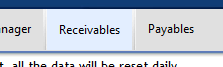 |
| The Receivables button is available from the main toolbar |
From the Customer Invoices screen, click the "New Invoice" link.
From the "Invoice Type" drop-down, select "Sale". Wait for the screen to complete its refresh, then select the sale you would like to invoice from the "Invoice to" drop-down list. This list will be filtered by default to only show sales that are active and not invoiced. You can display all sales by clicking the checkbox over the drop-down menu.
After selecting a sale, the invoice details will be automatically fetched from the sale. Adjust as desired, then click Save to complete the operation. Click PDF Invoice to generate a printable invoice.
Contact Invoices
You can create an invoice linked directly to a contact (no sale or shipping). This invoice type would be more common for businesses that sell intangible goods (consulting, rental properties, etc).
From the "Invoice Type" drop-down, select "Contact". Wait for the screen to complete its refresh, then select the contact you would like to invoice from the "Invoice to" drop-down list. This list will be filtered by default to only show contacts that are active and are customers.
Add line items as necessary, adjust pricing (remember to click the check mark to save each line as you go), then click Save to complete the operation. Click PDF Invoice to generate a printable invoice.
Subscribe to:
Posts (Atom)